A Low-Fuss Method for Keeping Software Up to Date
Keep software updates manageable by checking each app’s update source, choosing a suitable restart time and confirming that the update has finished.
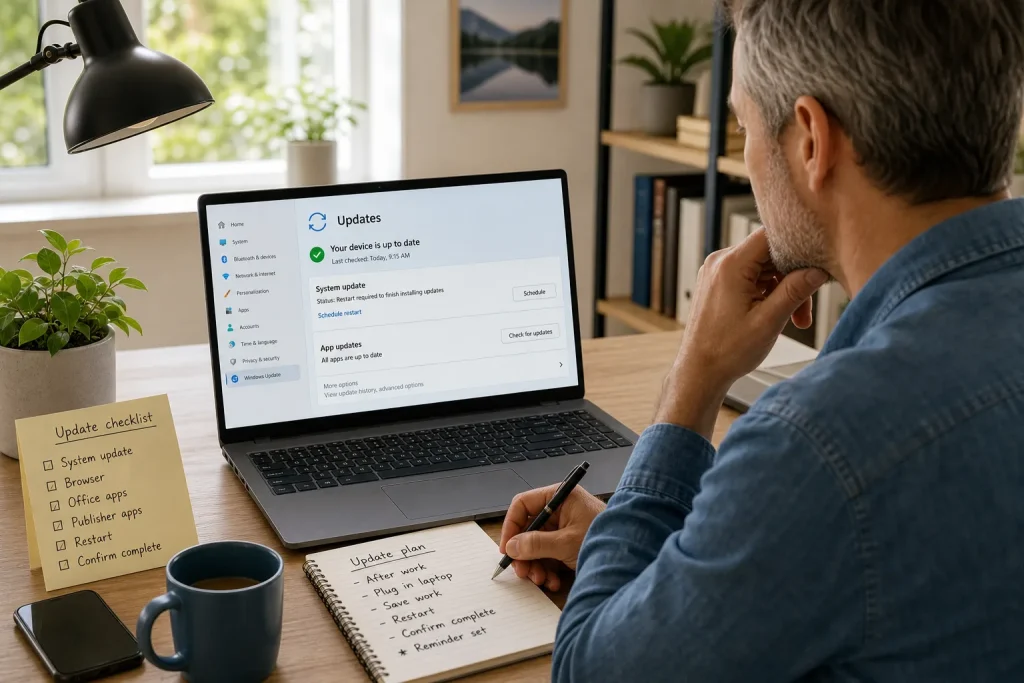
Keep software updates manageable by checking each app’s update source, choosing a suitable restart time and confirming that the update has finished.
Software · 7 min read
How can you keep software up to date without letting prompts take over your day? Start by checking which update route covers each app, then choose a time for restarts that will not interrupt work. The aim is a small, predictable routine—not a separate investigation for every notification.
Find the right source
Start with the update settings built into your device. Operating-system settings are the usual place to check for system updates, while apps may update through a store, within the app itself or through a publisher’s updater. The route depends on how the app was installed, the device and its software version, so do not assume one store handles everything.
On Windows, Microsoft Store can update apps installed through the Store; it may not cover software installed separately. On Apple devices, the App Store handles apps obtained there, while other software may have a different update route. Android apps obtained through Google Play can be managed there, but system updates are checked separately in the device settings. Chromebook options can vary with the device and administrator settings; check its built-in settings and the app’s own source rather than assuming every app updates through Google Play.
For a desktop app installed from a publisher’s website, open the app yourself and check its settings, help menu or official support page for update instructions. Avoid an unexpected browser message claiming that several unrelated programmes need updates. If you cannot identify the source, close the message and look up the publisher’s official instructions independently.
Choose one recognised update route for each app. If the app’s source or instructions are unclear, pause and check with its publisher or your organisation’s support contact before installing anything.
Choose a quiet time
An update may be brief, but a restart can interrupt a call, a document or a journey. Pick a time when an interruption would be manageable, such as after work or while you are at home and the device is plugged in. Device settings and update behaviour differ, so check what your own system offers rather than relying on a particular menu name or schedule.
For a work device, follow your organisation’s instructions. An administrator may control updates or require a restart, and changing those settings could cause trouble. If a prompt appears during a meeting, save your work and use the available postponement option. Set a reminder to return to it at a suitable time instead of leaving it indefinitely.
Say you have finished a set of slides and, just before a meeting, your laptop asks to restart. The starting point is an open slide deck and a pending restart. Save the deck, postpone the restart, and set a reminder for after the meeting. When the meeting ends, reopen the update screen, save any new work and allow the restart. Then check whether the pending restart notice has cleared and whether the laptop returns to its usual sign-in screen. If the notice remains, follow the on-screen instructions or consult your IT support rather than repeatedly restarting.
Save open work before accepting a restart, even if the device says it can restore your session.
Make restarts deliberate
Installing an update and restarting are not always the same task. An app may update without a restart, while an operating-system update may require one. Read the prompt to find out what is pending, and avoid treating every notification as an instruction to restart immediately.
Before restarting, save active work and check that important files have synced if you rely on cloud storage. Wait for video calls and file transfers to finish. If the device is shared, check that nobody else is using it for a form or a long-running task; a quick message can prevent an avoidable interruption.
After restarting, let the device finish loading before opening several demanding apps. If another restart prompt appears, read whether the first update is still pending or a different update needs attention.
Set updates thoughtfully
Look for separate controls for operating-system updates, app updates and restart notifications. Menu names and available choices vary by device and software version; settings search can help you find terms such as “software update” or “app updates”. You may be able to allow routine app updates while retaining a say over when the device restarts.
On a phone, settings may let you limit app updates to Wi-Fi or pause them when power is low. These options can be useful if you have limited mobile data or often use the phone away from a charger. On a laptop, check the current update settings to see whether you can choose notification preferences or a maintenance time. Do not assume that a particular version has active hours or a scheduled maintenance window; use the options actually shown on your device.
For your main browser and operating system, use the update route provided by the device maker or software publisher, unless your workplace administrator or support professional has instructed you otherwise. For unfamiliar software, verify the publisher and source before enabling automatic installation. If you no longer use an app, removing it may be simpler than keeping its updater active.
Track separate updaters
Some desktop apps installed outside a store provide an update notice within the app, a “Check for updates” command or a separate updater. Open the app yourself and check its settings or help menu. If the instructions are unclear, use the publisher’s official support page rather than an advert or pop-up.
A short note can keep track of apps that need separate attention. Write down the app name and where its update instructions appear; a calendar reminder or household planner is enough. If an app is essential for work, check with your employer before updating it independently, because the organisation may manage its approved version.
- Check the operating-system settings for a system update notice. If an update is pending and the device offers an appropriate installation option, schedule or start it at a suitable time; if no update is shown, continue with the app checks.
- Check whether an app came from an official store. If it did, use that store’s update controls; if it was installed another way, open the app or consult its publisher’s official instructions instead.
- Check whether an update prompt names a recognisable publisher and appears in the app or device settings. If it does, follow the official route; if it appears unexpectedly in a browser or names no clear source, close it and verify independently.
- Check whether the device says a restart is required. If it is safe to pause, save work and choose a quiet time; if the restart is urgent or controlled by your employer, follow the device or workplace instructions.
- Check whether important files are saved and synced before a substantial system update. If they are, proceed when convenient; if they are not, save them or make a copy first, then return to the update.
- Check whether an app is managed by your workplace. If it is, ask the administrator or support team before changing its version; if it is personal software, use the publisher’s stated update route.
Handle update problems
If an update seems stuck, avoid repeatedly forcing the device off. Read the screen, keep the device powered as instructed and allow it to complete. If the device returns to normal but still reports a problem, note the exact message and consult the maker’s official support page or your organisation’s help desk.
Before a substantial operating-system update, check that important files are backed up in the usual way. That might mean confirming that documents have synced to a service you already use or making a separate copy to an external drive. If you are unsure how to protect files on a work device, ask your organisation’s support team.
If an update requests new permissions or terms you do not understand, pause. For changes affecting work, personal information or access to an important service, ask the software provider or a qualified support professional before proceeding.
Keep the routine small
Attach a brief check to something you already do, such as plugging in your laptop or charging your phone. Look for a pending restart or a clear update warning, then decide whether to act now or choose a better time. Automatic settings can handle routine updates, while a quick check catches the ones that need your attention.
Focus on the official update route for the operating system and everyday apps, save work before restarts, and keep a short note of desktop apps that update separately. If a device belongs to an employer, its instructions take precedence.
Before you leave an update for later, give it a place in your routine: save your work, choose a suitable time and check afterwards whether the pending notice has cleared.
Keep exploring
A Shared Home Wi-Fi Setup That Is Easier to Manage
Compare a simple shared note, a password manager and router-based guest access to find a home…
Review App Permissions Without Losing Useful Features
A cautious permission review can protect personal information without breaking the features you rely on. Check…