Review App Permissions Without Losing Useful Features
A cautious permission review can protect personal information without breaking the features you rely on. Check what each access is for, change one setting at a time and see what happens.
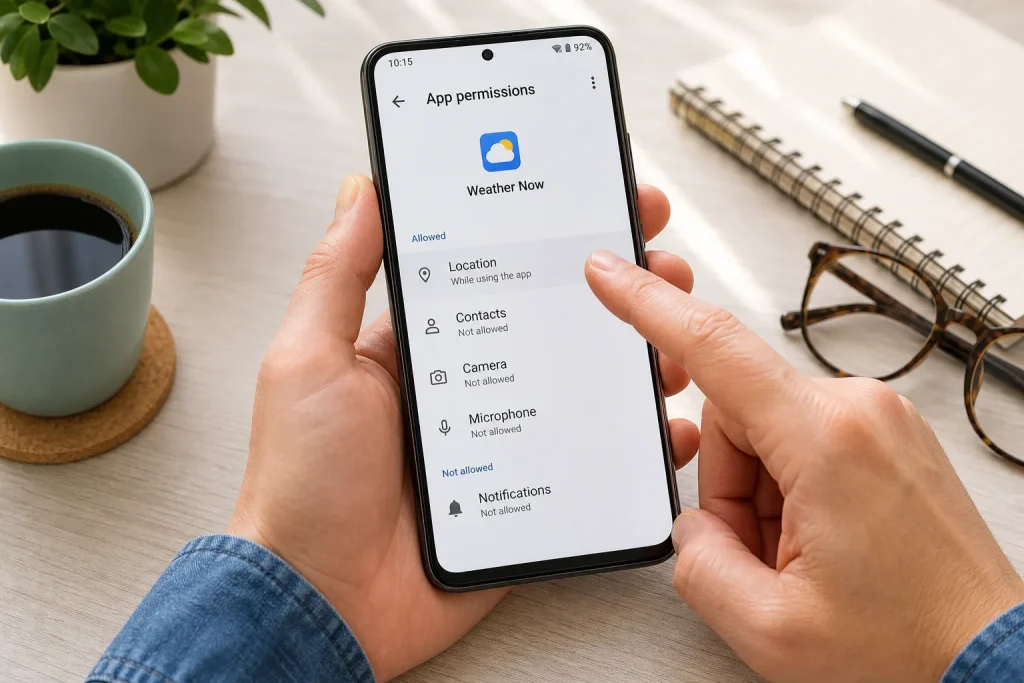
A cautious permission review can protect personal information without breaking the features you rely on. Check what each access is for, change one setting at a…
Privacy · 7 min read
Why did the weather app ask for your contacts, and will turning off its microphone stop calls from working? A permission prompt is a request, not a reason to approve access automatically. You can check what a feature needs, choose the narrowest option your phone offers and see whether the app still does the job you want.
Permission names and controls differ between Android phones, iPhones and software versions. Open Settings and look for Apps, Privacy or Permissions, or use Settings search for a permission or app name. If a control described here is missing, follow the choices shown on your device rather than assuming every phone offers the same options.
Unexpected prompts
What happens: An app asks for access as soon as you open it, before you have tried a feature that might need it.
Why it happens: Some apps ask early because a feature may be useful later. The prompt alone does not tell you whether access is essential to the task you came to do.
What to try: If you are unsure, decline or choose a limited option if one appears. Then try the feature you wanted. You can revisit the permission later if a specific tool, such as document scanning or voice notes, needs it. Check the app’s own explanation if the purpose is unclear.
Say you install a recipe app and it asks for contacts before you have tried a recipe. Imagine you decline, open a recipe and use search. If both work, you have no immediate reason to share contacts for those tasks; if you later choose an invite-friends feature, reconsider access for that specific purpose.
Pause at the prompt and connect the permission to an action you chose.
Location requests
What happens: A map, delivery or local-information app asks for location access, or appears to need it when you are not using it.
Why it happens: Location may support nearby searches, directions or place-tagging. Depending on the device and app, you may see options for access while using the app, broader access, a limited choice or no access. The available controls vary, so use the options actually shown in your settings.
What to try:
- Open the app’s permission settings and note the location choice currently selected.
- Name the feature you want to use, such as a nearby search or directions from your current position.
- If you need location only during a task and your device offers that choice, select the narrower access and try the feature.
- If you do not use location-based features, deny access and try the app’s other functions.
- If a specific feature fails, check its explanation and decide whether location is worth enabling for it. If it is not, leave access off and look for a manual alternative.
Imagine you use a public-transport app to look up a route from a station you type in yourself. You deny location and enter the station; if the route appears, manual entry works for that journey. If you later want directions from your current position, check the available location choices and enable the narrowest one that supports the task.
Some apps may offer live location sharing or another feature that needs access beyond an active session. Enable broader access only if you deliberately use that feature and understand the control your device presents.
Contacts access
What happens: A messaging, calendar or social app asks for contacts, but you only want to message one person or add one name.
Why it happens: Access to the address book can help suggest saved people. That convenience is different from entering a name, phone number or email address yourself. Some devices or apps provide a contact picker for sharing selected entries; others may not.
What to try: Decline access and see whether manual entry works. If you want to share details for one person, look for a picker that lets you select that contact without giving the app ongoing access to the whole address book. If the app is meant to sync or organise contacts, check its explanation and decide whether that function is one you want.
Your address book may contain information about people who have not chosen to use the app. If you grant access, review it later. Removing permission may stop suggestions or syncing, while leaving unrelated features available.
Camera and microphone
What happens: A video call shows a black screen, a voice note has no sound or a scanning tool cannot capture a document.
Why it happens: The app may lack permission, or a device-wide privacy control may block access. The app may also have another problem, so permission is not the only possible cause.
What to try:
- Check whether the feature needs a camera, a microphone or both. A text chat needs neither for typing; a video call may need both.
- Open the app’s permission settings and inspect camera and microphone separately.
- Check your device’s privacy controls for any broader camera or microphone block.
- If the relevant permission is off, enable it, close and reopen the app, then try the feature again.
- If it still fails, check the app’s help information or contact support rather than enabling unrelated permissions. If you no longer need the feature, turn the access back off.
For a one-off scan, you could allow camera access, scan a page and then review whether the permission should remain on. If you make calls regularly, keeping the relevant access available may be convenient; choose according to the controls on your device and how you use the app.
When features fail
What happens: After you remove a permission, a button disappears, a feature gives an error or the app asks you to restore access.
Why it happens: The permission may be needed for that feature even if it is not needed for the rest of the app. The app may also lack a manual alternative or explain the requirement poorly.
What to try: Identify the exact action that stopped working. If the app explains which permission it needs, restore only that access and retry the action. If it works, decide whether the feature is useful enough to keep enabled. If not, turn access off again and look for another way to complete the task, such as entering a place manually or choosing a photo through a picker.
Imagine you turn off microphone access for a meeting app. Messages still work, but voice calls send no sound. You restore microphone access and try a call; if sound returns, the change addressed that feature. If you do not make calls in the app, you can leave the permission off.
If the feature remains broken after you restore the relevant permission, do not enable unrelated access in the hope that it will help. Check the app’s help or contact its support team. On a work-managed device, an administrator may control some settings; ask workplace support before changing controls you cannot edit.
Unused app access
What happens: An app you rarely open still appears to have access to sensitive information, or you cannot remember why you approved a permission.
Why it happens: Permissions can remain in place after you stop using a feature. Some Android devices and versions may offer an unused-app setting that can pause permissions or reset access after a period without use. Availability and behaviour vary by device, software version and app. Do not assume your phone has this feature, or that an app’s access has changed automatically.
What to try: Check the app’s settings or permission page for a control mentioning unused apps, paused permissions or access resets. If it is present, read what it will do and decide whether it suits your needs. If it is absent, review permissions directly: keep access that supports a feature you still use, and remove access without a clear purpose. If you open the app later and need a restricted feature, follow the prompt and your device’s available choices.
For instance, imagine an app’s settings explicitly offer to pause its permissions when it is unused. You rarely open the app but still want its alerts. Read whether pausing access affects those alerts; if the explanation says it may, leave the control off and review the app’s permissions yourself. If you do not rely on the alerts and prefer access to pause, you could enable the control and check the app again when you next need its features.
Review one app at a time, and check again after an update or when you start using a new feature.
A steady review
For each app, name the task you use it for and match each permission to that task. Try the narrowest option your device offers, then check whether the feature works. Location may help with nearby searches; contacts may make invitations easier; camera or microphone access may support calls, scans or recordings. Those reasons do not automatically apply to every part of an app.
If a change causes trouble, restore the specific permission and retry the feature. If it still does not work, seek help rather than enabling unrelated access. A small, reversible review lets you keep useful features while making deliberate choices about what each app can access.
Keep exploring

A Low-Fuss Method for Keeping Software Up to Date
Keep software updates manageable by checking each app’s update source, choosing a suitable restart time and…
A Shared Home Wi-Fi Setup That Is Easier to Manage
Compare a simple shared note, a password manager and router-based guest access to find a home…